
Why Laptop Lifespan Matters
For most people, the laptop is the center of the workday. It holds the projects, the accounts, the files, and the tools that keep a business running. Extending its lifespan is not just about saving money on the next purchase, although that matters. A well-cared-for laptop stays fast, reliable, and secure for years longer, which means fewer interruptions, less data risk, and a smaller environmental footprint. The tips in this guide are practical, inexpensive, and easy to build into a normal routine.
Battery Care: The Biggest Factor
Battery health often decides how long a laptop feels usable. When the battery starts failing, even a powerful machine becomes inconvenient. A few habits protect it.
Keep Charge Levels in the Sweet Spot
Modern lithium-ion batteries age fastest when they sit at extreme charge levels. Keeping the charge between roughly 20 and 80 percent for everyday use slows that aging noticeably. If you work at a desk most of the day, avoid leaving the laptop plugged in at 100 percent constantly. Many new laptops include a battery protection mode that limits the charge, so check the power settings and enable it if available.
Avoid Heat and Extreme Cold
Heat is the battery’s worst enemy. Leaving a laptop in a hot car, on top of a radiator, or under direct sunlight accelerates wear dramatically. Cold is less common but also harmful, so avoid storing a laptop in freezing conditions. A comfortable room temperature is exactly what the battery prefers.
Use the Right Charger and Cable
Always use the charger that came with the device or a compatible replacement from a trusted brand. An incorrect charger can deliver the wrong voltage and damage the battery or the charging circuit over time. If the charging cable frays or the connector becomes loose, replace it before it causes intermittent charging.
Keep It Cool: Dust, Vents, and Surfaces
Good cooling keeps the processor fast and the battery healthy. The cooling system can only do its job if air can move through it. Check the side and bottom vents every few months and clear away dust with a can of compressed air. Work on a hard, flat surface whenever possible, because soft surfaces like beds and couches block the vents. If the laptop runs hot under load, a simple cooling pad is a low-cost upgrade that can extend component life considerably.
Storage Health: SSD Care and Backup
The drive stores everything, so keeping it healthy is non-negotiable. Leave some free space on the SSD, because very full drives slow down and wear out faster. Avoid running the drive to zero space repeatedly. Equally important is a reliable backup routine: keep important files synced to an external drive or a cloud service, and test a restore now and then. Hardware fails eventually, but data loss does not have to be permanent.
Software Hygiene
Software problems can make a perfectly good laptop feel ancient. Install operating system and driver updates regularly, because they fix bugs and close security gaps. Review startup programs and disable the ones you do not need, since they slow boot times and eat memory in the background. Uninstall software you no longer use, and run a security scan periodically. These habits keep the system responsive without any hardware changes.
Physical Care: Screen, Hinges, and Ports
Small physical habits protect the most fragile parts. Open the lid from the center of the screen edge instead of one corner, which strains the hinges over time. Clean the screen with a soft dry microfiber cloth, and never spray liquid directly on it. When disconnecting cables, pull the connector, not the wire. If ports feel loose or intermittent, have them checked early, because a damaged port can spread to the motherboard if left untreated.
Know When to Repair, Upgrade, or Replace
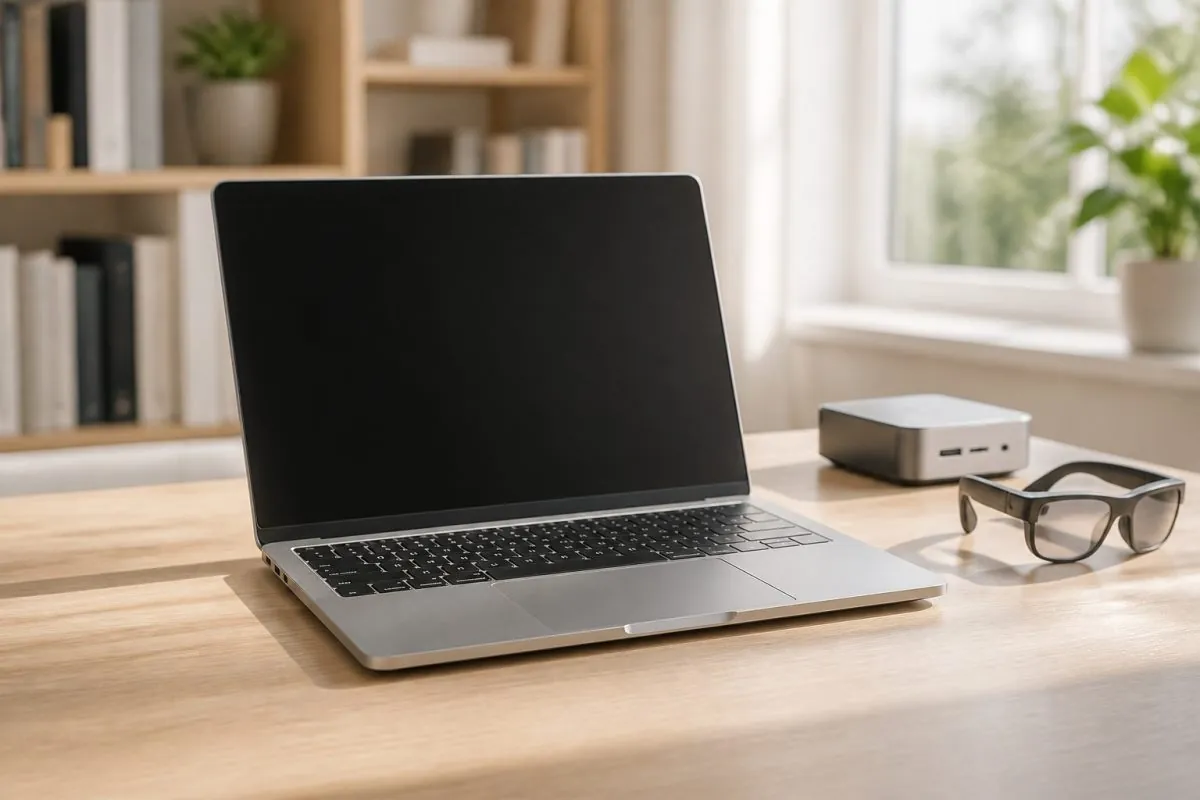
Extending a laptop’s life does not mean keeping it forever. Sometimes a small upgrade is the smartest move. Adding memory or swapping in a larger SSD can give an older laptop a new lease on life at a fraction of the cost of a new machine. For a business, a practical approach is to pair devices by role: a laptop for mobility, a mini PC as an always-on workstation for heavier tasks, and smart glasses or a lightweight companion device for quick information at a glance. Letting each device do what it does best spreads the workload and slows wear on every component.
When a laptop finally reaches the end of its useful life, recycle it responsibly through an authorized program, and remove all personal data first.
Final Thoughts
A laptop is a long-term investment, and how you treat it determines how long it returns value. Protect the battery, keep it cool, back up your data, and address small problems before they grow. These habits cost almost nothing, yet they routinely add years of useful life to a machine. Whether you manage a single laptop for your own work or purchase devices in bulk for a team, the same principles apply. And when it is time to refresh your equipment, working with a supplier who understands quality, configuration, and support makes the whole process smoother, from the first inquiry to the final delivery.
