
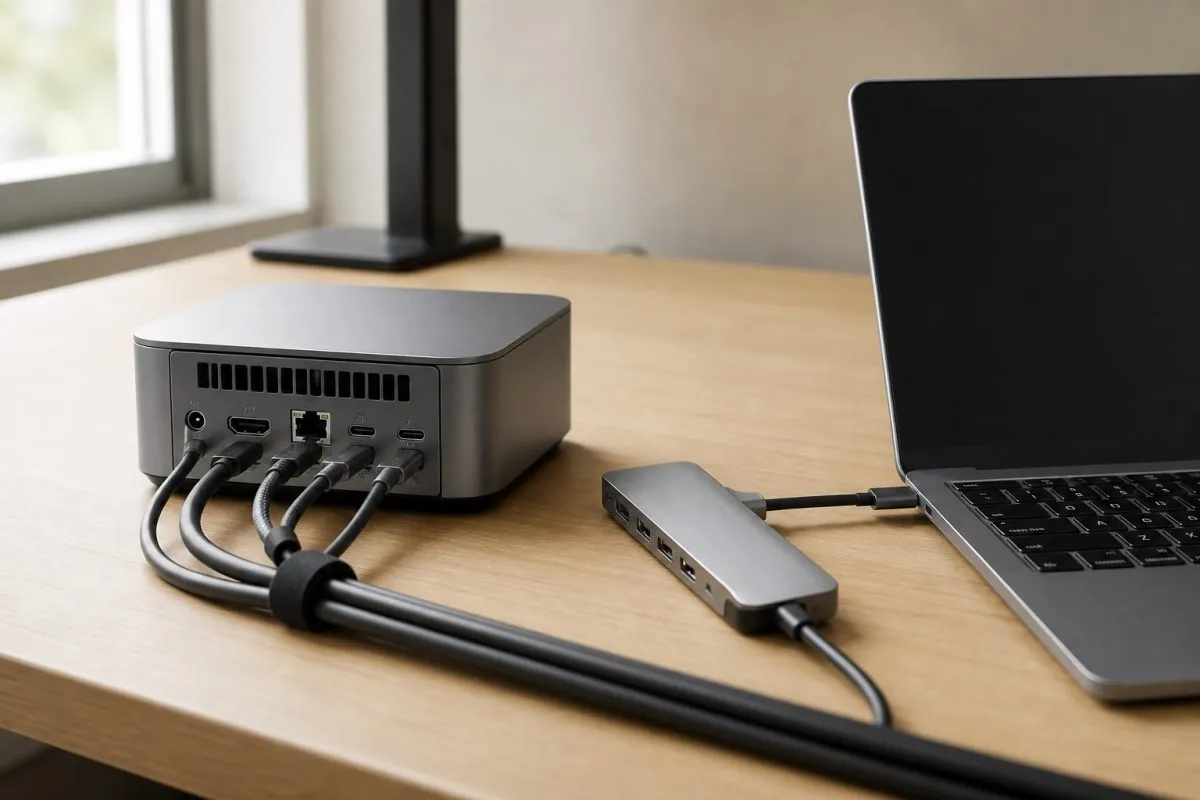
Two devices can carry the same processor and the same amount of memory and still behave completely differently on a desk, because the ports decide what you can plug in without an adapter. For buyers specifying laptops, mini PCs, and AI glasses in volume, ports are also one of the few specifications that end users notice immediately in daily work. This guide walks through the main port types, what each one is good for, and what to confirm before ordering.
Why Ports Decide Whether a Device Fits
Storage and memory can be compared on a table. Ports cannot, because their value depends on the workflow around them. A retail counter needs a receipt printer, a barcode scanner, and a cash drawer. A design desk needs one or two high-resolution monitors at a comfortable refresh rate. A signage player needs a single video output that survives years of continuous operation. These users do not care about the same connector count, which is why port layout deserves its own line in the specification instead of a marketing sentence.
The Core Port Types You Will See
USB-A
The rectangular connector remains the most common interface for keyboards, mice, scanners, and older storage devices. It is still worth having at least a pair on a business machine, because much of the equipment already installed in offices and shops uses it.
USB-C
The compact reversible connector can carry data, video, and power on a single cable. On modern laptops and mini PCs it is often the port that makes a one-cable desk possible: a dock connects once and everything else, from monitors to peripherals, follows. Not every USB-C port is equally capable, so the specification should state whether the port supports video output and charging, or data only.
HDMI
HDMI is the default for monitors, televisions, and meeting-room screens. The generation of the port determines how much resolution and refresh rate it can carry, so a machine intended for a high-refresh display should be specified with the appropriate version rather than simply with the word HDMI.
DisplayPort and Mini DisplayPort
DisplayPort appears on monitors and docking stations, and the mini variant is common on compact machines. It supports daisy-chaining on monitors that offer the feature, which reduces cable runs on multi-monitor desks.
Ethernet
A wired network port is still the most predictable connection for point-of-sale terminals, digital signage, and office machines. Wireless is convenient, but a cable removes a whole category of support calls.
Audio and Card Readers
A combined headset jack and a memory card slot are small additions that matter in education, photography, and field support work, where an adapter is one more item to lose.
Display Outputs: Matching Ports to Monitors
When a customer plans two or more screens, the practical questions are how many independent video outputs the device provides, which cable each output expects, and whether a dock will take over that job. Confirming these three points before the order avoids the familiar situation where a machine arrives with the right number of ports but the wrong combination.
Power Delivery and Docking
USB-C power delivery lets one cable charge a laptop and feed a dock at the same time. The limit worth watching is total power: a dock that supplies enough power for a light laptop may not keep up with a larger model under sustained load, so the power rating of both the dock and the device should be checked together.
How Many Ports Do You Actually Need
- Office and administration: two USB-A, one or two USB-C, one HDMI, and Ethernet.
- Retail and point of sale: several USB-A ports for peripherals, Ethernet, and a video output for a customer-facing screen.
- Digital signage: a reliable video output, Ethernet, and enough USB ports for storage and a service keyboard.
- Education: USB-C for projection, USB-A for accessories, and a headset jack.
- Development and creative work: dual video outputs, fast USB-C, and Ethernet.
What to Confirm in a Wholesale Order
Port specifications are easy to misread in a quotation, so it helps to confirm the layout as a short list rather than a marketing line: how many ports of each type, which generation each video output follows, whether the USB-C ports carry video and power, and which cables or adapters are included in the box. It is also worth stating the labelling and packaging your channel requires, and the firmware or BIOS configuration you expect on delivery.
How RunCK Helps Buyers Specify the Right Layout
RunCK supplies laptops, mini PCs, and AI glasses for wholesale and OEM buyers, and port layout is one of the first things discussed when a project is scoped. Send the intended use, the peripherals that must connect, and the number of screens, and the team will confirm which configuration fits and which accessories should ship with it. Samples can be arranged so that the connectors and the dock behaviour can be checked before the order is placed.
Because laptops, mini PCs, and AI glasses can be combined in one order, connectivity can be planned across the whole deployment rather than device by device. Share the site details and the team will come back with a configuration that matches the way the equipment is actually used.
