
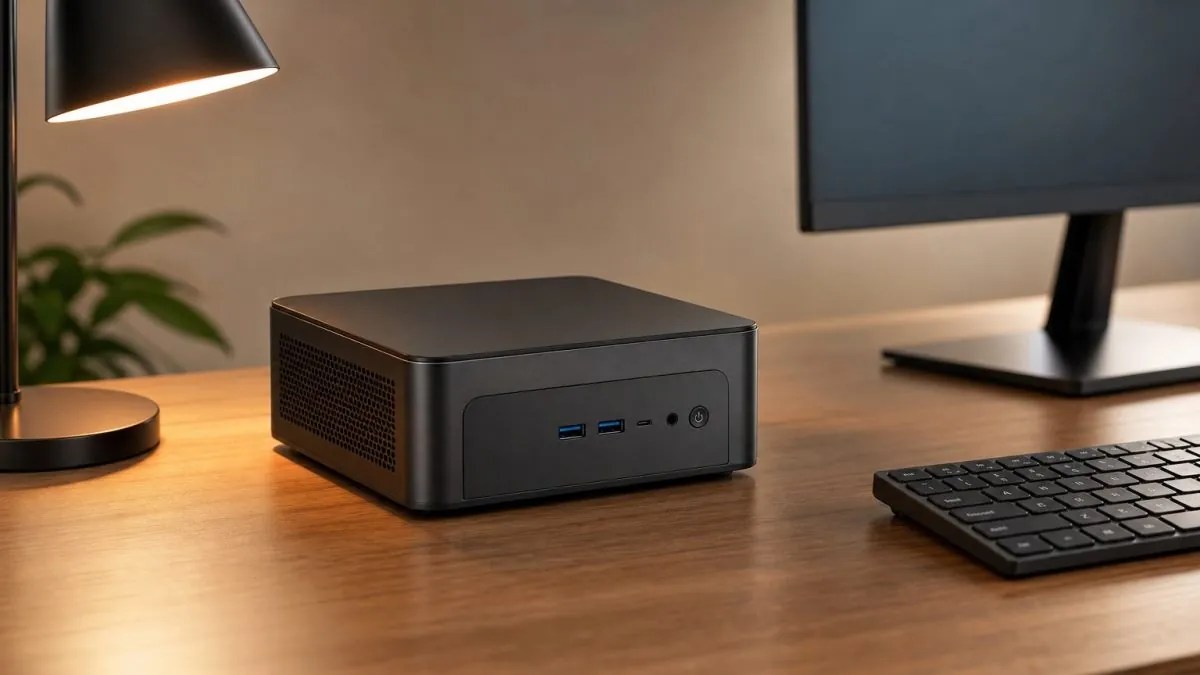
Mini PCs have grown from niche hobby devices into a practical choice for home offices, retail counters, and even media setups. They take up almost no space, use little power, and can handle most everyday computing tasks. But the range of models is wide, and the spec sheet is easy to misread. This guide explains what actually matters when you compare mini PCs, so you end up with a machine that fits your work — not a box that sits half-used on the desk.
What Is a Mini PC and Who Is It For?
A mini PC is a full desktop computer packed into a case that often fits in the palm of your hand. It has its own processor, memory, storage, and ports, and it runs the same operating systems as a regular desktop. You supply your own monitor, keyboard, and mouse.
Typical users include office workers who want a stable desktop for documents and spreadsheets, shop owners running point-of-sale systems, students with limited desk space, and anyone who wants a quiet second computer for browsing and streaming. Because mini PCs consume little power, they are also popular in setups that run around the clock.
CPU, RAM, and Storage: Reading the Spec Sheet
Three components decide how well a mini PC performs, and each is easy to evaluate:
- CPU: for browsing, office work, and video playback, an entry-level or mid-range processor is more than enough. If you edit video, compile code, or run virtual machines, look for a higher-end chip with more cores. More cores means better handling of multiple tasks at once.
- RAM: 8GB is the practical minimum today. 16GB gives comfortable multitasking with many browser tabs and applications open, and 32GB is worth considering for heavier creative work.
- Storage: insist on an SSD — a hard drive will make even a fast processor feel sluggish. NVMe SSDs are noticeably faster than SATA models, and it is useful to check whether the case has a second drive bay for future expansion.
Ports and Connectivity: What You Actually Plug In
Look at the ports the same way you look at the CPU. A typical setup needs USB-A for the keyboard, mouse, and peripherals, USB-C for modern accessories, and at least one HDMI or DisplayPort output — two outputs if you plan to run dual monitors. Wired Ethernet is a plus for stable networks, while Wi-Fi 6 and Bluetooth keep wireless options current.
Upgradeability is worth checking before you buy. Some mini PCs let you open the case to swap RAM or add storage later; others are sealed. If you expect the machine to last several years, a serviceable model is usually the better investment.
Mini PC vs Laptop: Which One Fits Your Setup?
The choice between a mini PC and a laptop comes down to how you work. A laptop brings portability, a built-in screen, and a battery — essential if you move between desk, meeting room, and home. A mini PC offers more ports, easier upgrades, and usually quieter, cooler operation, often at a better price-to-performance ratio.
If you never move your machine, a mini PC paired with a good monitor often outperforms a laptop at the same price. If you travel regularly, the laptop is the obvious pick. Many users keep both, and the two complement each other well.
Building a Device Setup Around a Mini PC
Modern workspaces rarely rely on one device. A mini PC can anchor the desk, handling heavy tasks and keeping files organized, while a laptop stays packed for meetings and travel. AI glasses are starting to join this mix as well, letting you glance at notifications, timers, or reference notes without reaching for a phone — a small convenience that adds up during a long workday. Choosing the mini PC first is a good way to build the rest of the setup around a stable, quiet core.
Quick Buying Checklist
- Match the CPU to your workload — more cores for creative or development work.
- Choose 16GB of RAM for comfortable multitasking.
- Require an NVMe SSD, and check whether a second drive bay exists.
- Confirm the ports you need, including dual-monitor support if you use two screens.
- Check whether RAM and storage can be upgraded later.
With the right specs in mind, choosing a mini PC is straightforward. For business purchases or larger deployments, suppliers like RunCK can help match configurations to your needs.
